 JobSquirrel
Your personal all-in-one job hunting dashboard.
An app that saves the job ads you find, then keeps every application, deadline, interview and CV in one place.
The Chrome extension
Saves the job ad you are reading into the app.
Download the extensionHow to add it. The app shows you too.
You need both: the extension saves into the app.
Free during the beta · No account · macOS 14 or later · Windows 10 or 11 (if it warns you) · Linux (x64): .deb for Ubuntu, Debian and Mint, AppImage for others (which one?)


Sound familiar?
The ad is gone before your interview.
You keep your own copy of it.
“Which CV did I send them?”
It’s right there, with the job.
You missed the closing date.
You get a reminder first, when you know the date.
A spreadsheet you stopped updating.
A board. Drag a card, done.
Meet JobSquirrel.
From the ad you spot to the offer you sign.
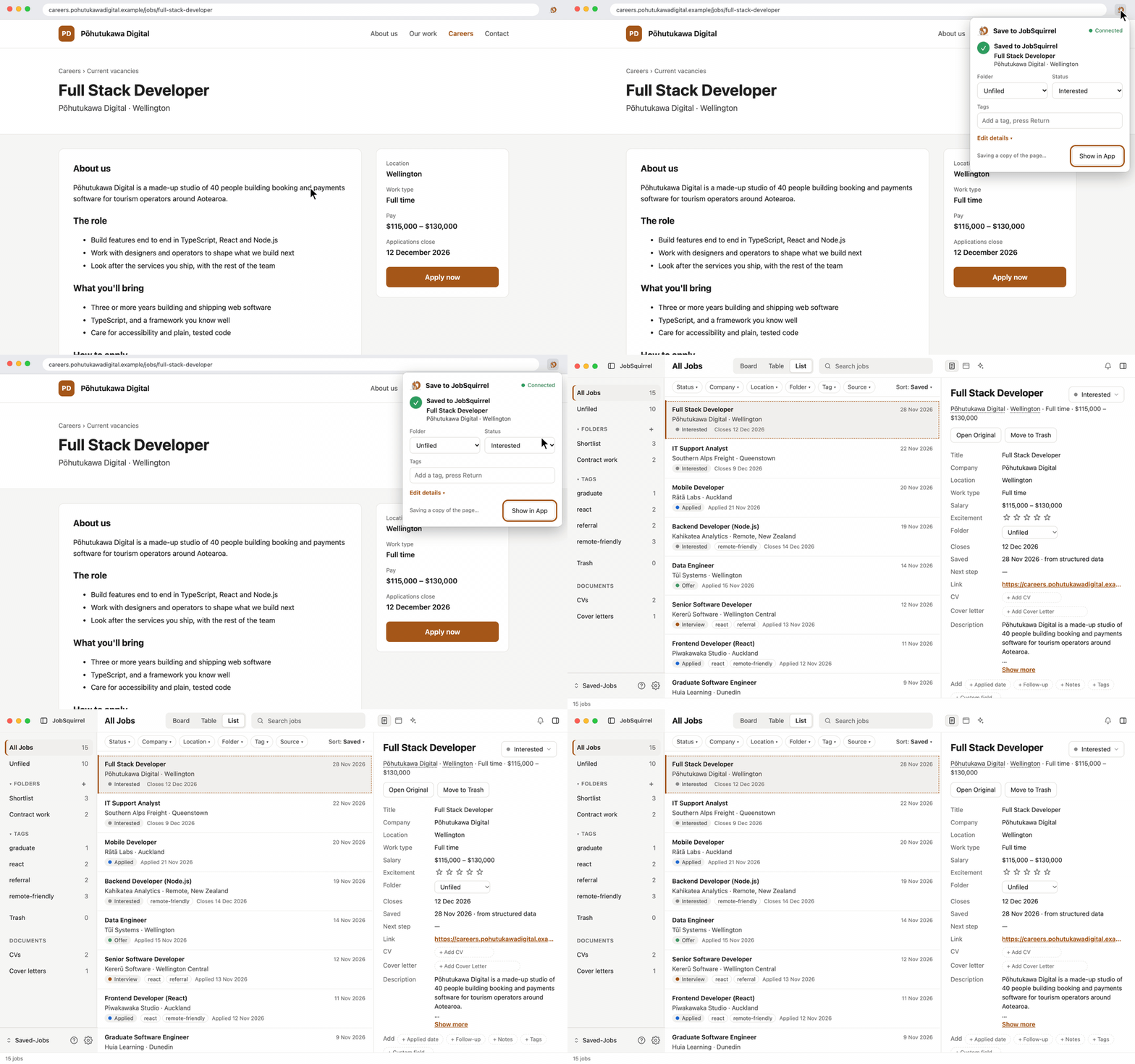
Save with a click.
Spotted a role on Seek, LinkedIn or Trade Me Jobs? Click the squirrel in Chrome’s toolbar. JobSquirrel fills in what the ad shows, such as the title, company, pay and location, and keeps a full copy of the ad.
- Seek, LinkedIn, Indeed, Trade Me Jobs, and a copy of other job pages too
- Show in App takes you straight to it
- Saved it before? The popup says so
Keep every ad.
Ads come down when the job closes, often just before your interview. Your copy stays, as the ad looked, and opens without the internet.
- The whole ad: the role, what they want, how to apply
- Open Original when the live ad is still there
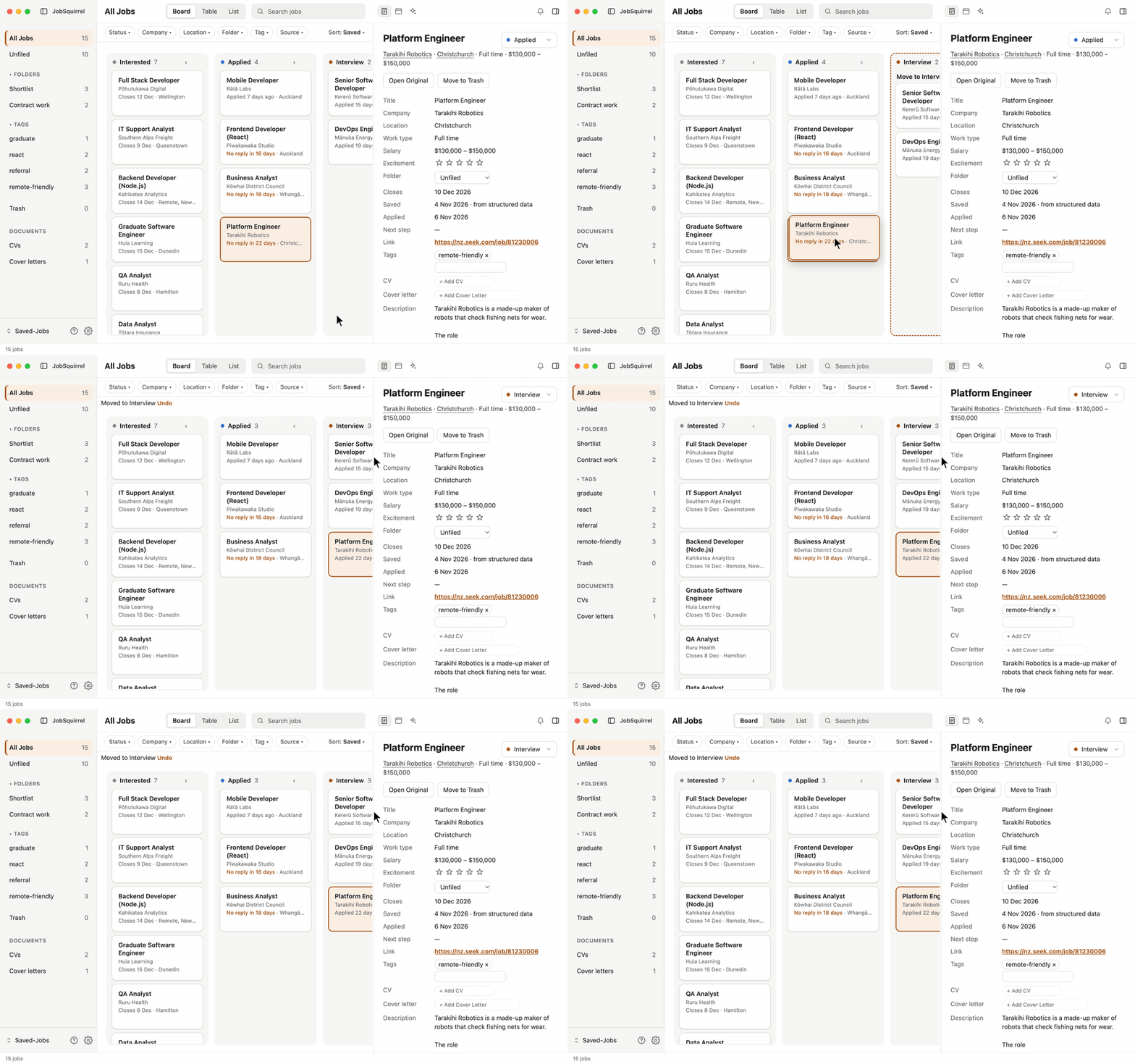
Track every application.
Drag a card from Applied to Interview, and the job follows. Use the Board, a Table or a List, whichever suits you.
- Status, applied date, follow-up and next step
- Interview notes, stars for how keen you are, fields of your own
- Folders and tags for each job hunt
Find it again.
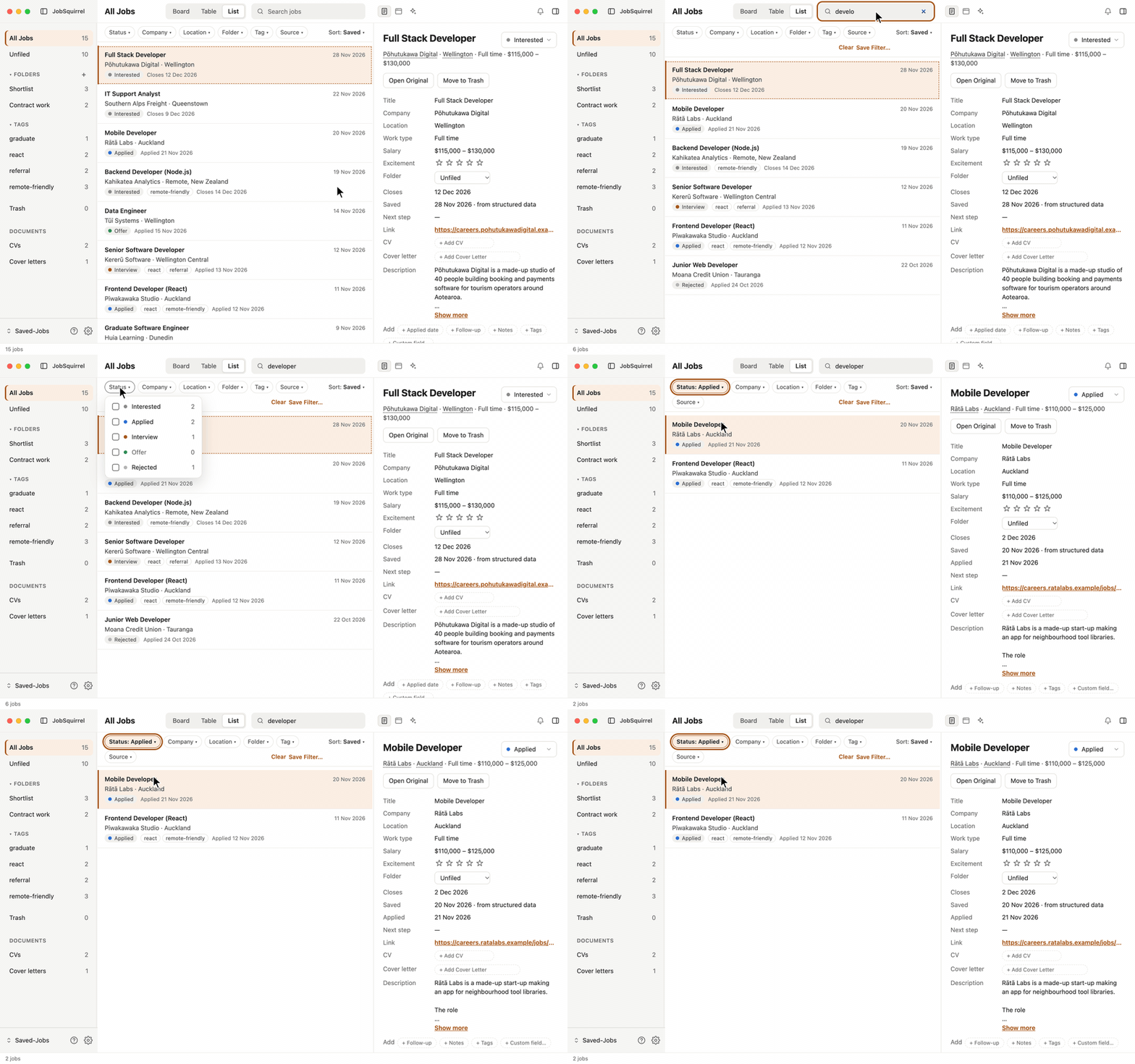
Search your jobs, then narrow them down by status, company, location, folder, tag or site. Keep the filters you use often in the sidebar.
- Finds jobs by title, company, place, tag or folder
- Saved filters, one click away
Know which CV you sent.
Keep each version of your CV and cover letter in one place, and link it to the jobs you sent it with. When they call, you know exactly what they read.
- PDF and Word files, kept with your jobs
- See how many jobs used each version
Prepare with your own AI.
Ask for a cover letter, interview questions, or what the employer really wants. Claude Code or Codex opens inside JobSquirrel with a copy of the ad, your notes and your CV.
- Your own Claude or ChatGPT plan, signed in as you
- Use what it writes as this job’s cover letter, in one click
- JobSquirrel sells no AI and sends nothing itself
Spot what you saved.
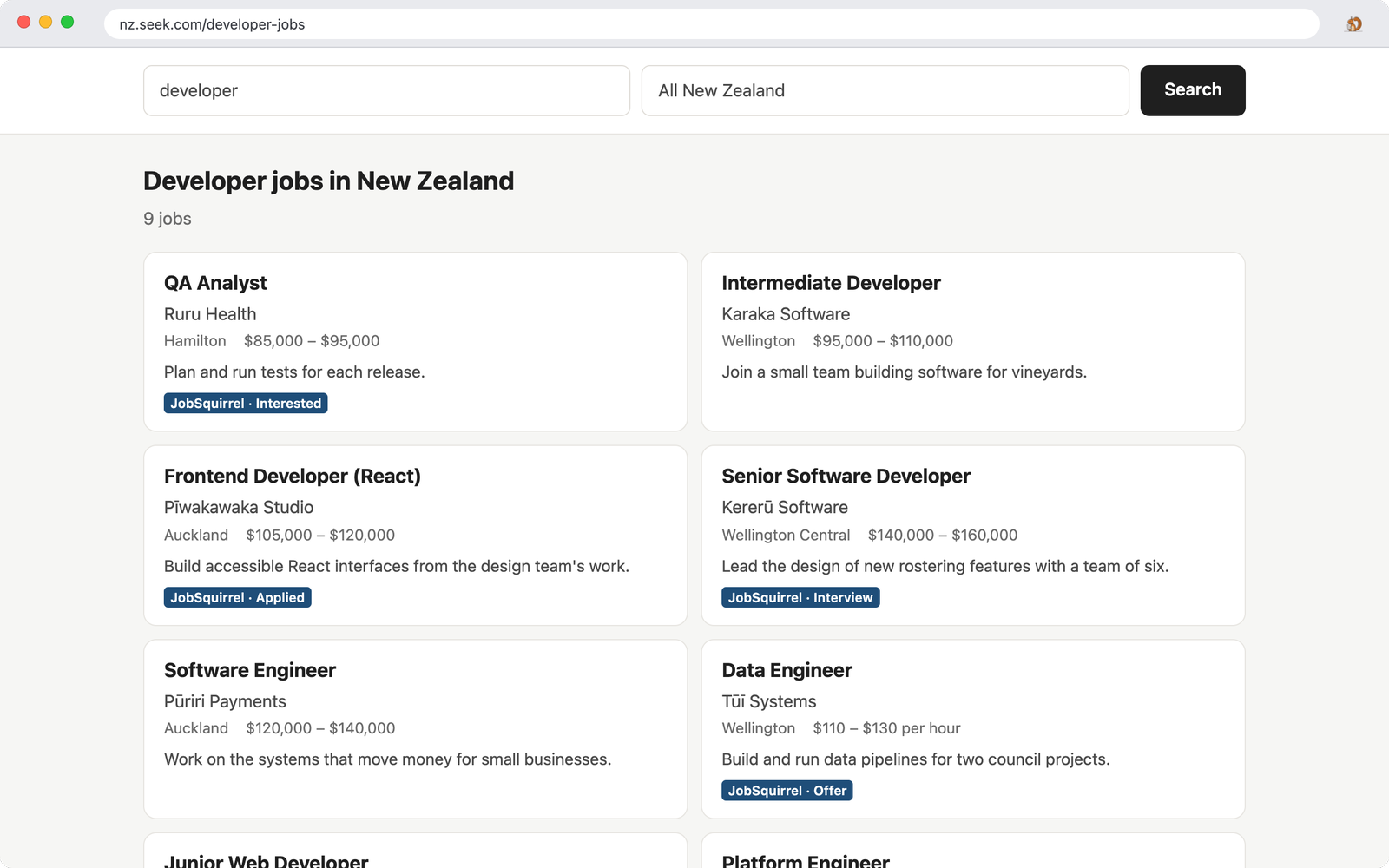
On Seek’s search results, the jobs you saved carry a label with their status.
- Turn it on in the extension’s settings
- Checked against your own library, on your computer
Also in the box
Reminders
Before a closing date, and on the day you planned to follow up.
Folders and tags
One folder for each hunt, tags for everything else.
Several libraries
Keep this year’s hunt apart from the last one.
Back up in one go
Export Backup… puts a whole library in one zip file.
A Trash
Deleted by mistake? Restore it.
Updates in the app
When a new version is out, a card shows what is new. Click Update, then restart.
Light and dark
Follows your computer’s setting.
Keyboard shortcuts
Keys for the things you do most. See them
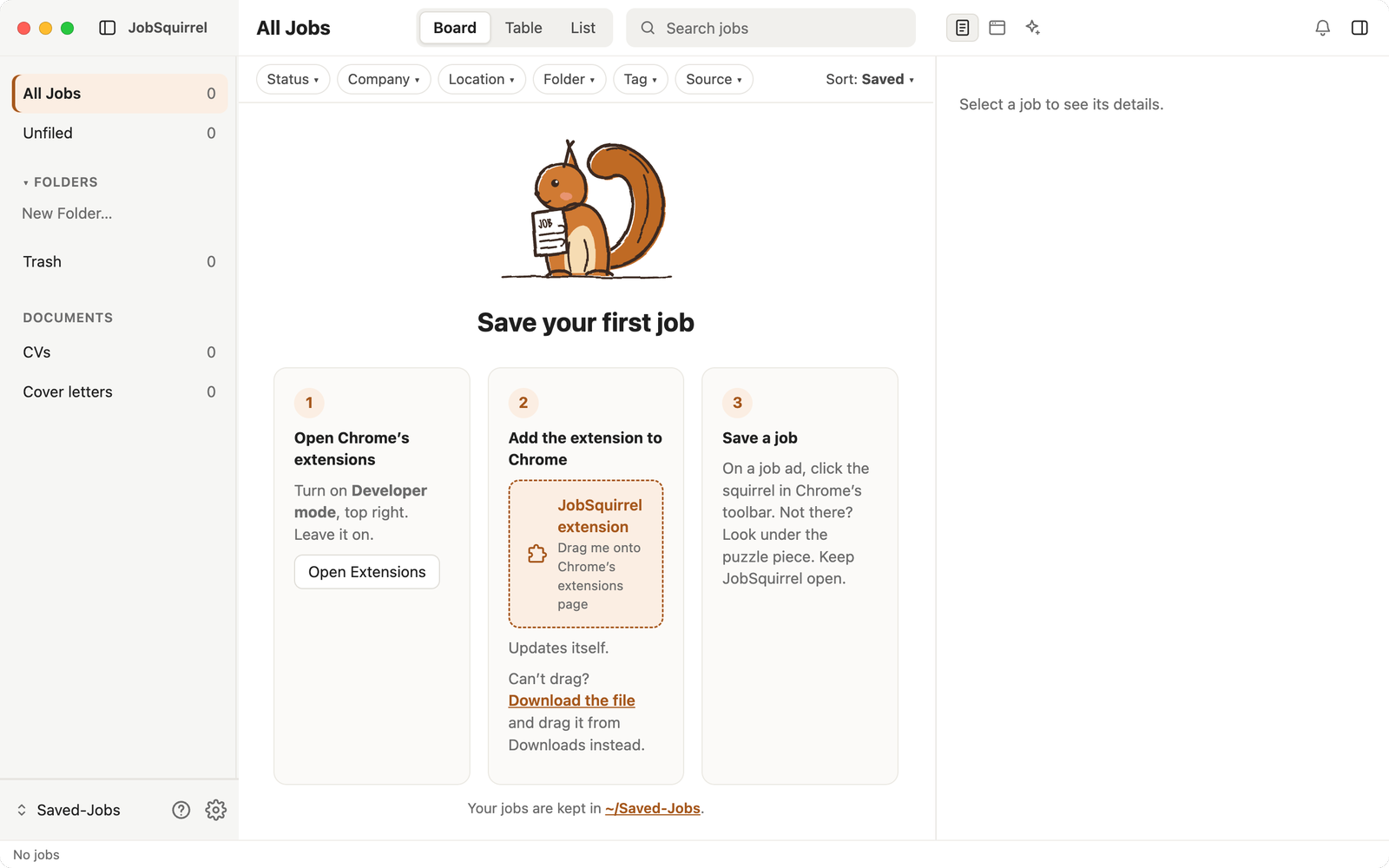
Add it to Chrome: one drag
The app shows you how, and its copy of the extension updates itself. No app at hand? Download the extension and drag it in.
Open Chrome’s extensions
Click ⋮ (top right) → Extensions → Manage Extensions. Turn on Developer mode, top right, and leave it on.
Drag it in
Drag the JobSquirrel extension tile from the app onto that page. Or drag the downloaded file from your Downloads folder; no need to unzip.
Click the squirrel
It is in Chrome’s toolbar. Not there? Look under the puzzle piece.
Works where you look
Seek LinkedIn Indeed Trade Me Jobs SEEK Grad Prosple Student Job Search SEEK Volunteer Hays Education Gazette
Any other job page works too: you get the full copy, and fill in what it doesn’t say.
From “ooh” to “I got it!”
Interested
Ooh, this one looks good.
Applied
Off it goes. Fingers crossed.
Interview
Tie on. Deep breaths.
Offer
Party time!
Rejected
Plenty more acorns.
Rest easy.
Your job hunt is your business. It stays on your computer: we can’t see it, and we don’t want to.
On your computer
Your jobs are plain files in a folder you choose.
No account, no ads
Nothing to sign up for.
Your jobs stay with you
The extension reads a job ad only when you click it. Once a day the app asks GitHub for the newest version; GitHub counts these checks, and we see only the daily total. You can turn it off in Settings.
Ready to try JobSquirrel?
It’s free, and in beta. Something broken, confusing or missing? Tell us, and a person reads it.
The Chrome extension
Saves the job ad you are reading into the app.
Download the extensionHow to add it. The app shows you too.
You need both: the extension saves into the app.
Linux (x64): .deb for Ubuntu, Debian and Mint, AppImage for others (which one?)
Questions
What do I need?
Two downloads: the JobSquirrel app and its Chrome extension. The app runs on a Mac with macOS 14 or later, a 64-bit PC with Windows 10 or 11, or a 64-bit Intel or AMD PC with Linux. And Google Chrome; on Linux, from google.com/chrome, not a Snap or Flatpak.
Windows warns me about the download
The Windows version is not signed yet. Click More info, then Run anyway. If there is no Run anyway, it can’t be installed on that PC yet. Download it only from this website or our download page.
Linux: the .deb or the AppImage?
On Ubuntu, Debian and Linux Mint, use the .deb. On Ubuntu 24.04 and later, JobSquirrel won’t run from the AppImage, because Ubuntu doesn’t give it the security sandbox JobSquirrel needs. On other Linux, use the AppImage. How to install
Can an AI help me with an application?
Yes, the one you already pay for. Right-click a job and choose Chat About This Job: Claude Code or Codex opens with a copy of the ad, your notes and your CV, signed in as you. More in Chat with your AI.
The extension says JobSquirrel isn’t running
Open the JobSquirrel app, then click Try Again. More in Something wrong?