 JobSquirrel
How to use JobSquirrel
JobSquirrel has two parts: an app on your computer that keeps your jobs, and a Chrome extension that saves job ads into it. This page shows you how to set up both and use them day to day.
On Windows and Linux, the menus are behind ☰ at the top left of the window. Alt or F10 opens them too.
Install
JobSquirrel has two parts, and you need both: the app keeps your job library on your computer, and the Chrome extension saves job ads into it.
1. The app
- Download JobSquirrel: for Mac (macOS 14 or later), for Windows (10 or 11, 64-bit), or for Linux (64-bit Intel or AMD): the .deb for Ubuntu, Debian and Linux Mint, or the AppImage for other distributions.
- Mac: open the download and drag JobSquirrel into your Applications folder. Windows: open the download; if Windows warns you, click More info, then Run anyway. Linux: open the .deb to install it, or run sudo apt install ./JobSquirrel-amd64.deb in the folder you downloaded it to. On other distributions, make the AppImage executable (Properties → Allow executing as program) and open it. On Ubuntu 24.04 and later, use the .deb: it sets up the security sandbox JobSquirrel needs, which Ubuntu does not give AppImages. If you open the AppImage there, JobSquirrel tells you and offers the .deb. Use Chrome from google.com/chrome: a Chrome or Chromium installed as a Snap or Flatpak cannot reach the app. Ubuntu’s own Chromium is a Snap.
- The first time, JobSquirrel shows its start page. Click Create, then Create again, to make a library called Saved-Jobs in your home folder; you can give it another name, or choose another place with Browse…. That is where your jobs are kept. If you already have a Saved-Jobs library in your home folder, the start page lists it: click it to open it. Already have a library somewhere else? Click Open and choose its folder.
- Moved your library, or keep it on a drive? If JobSquirrel can't find it, the start page lists it with Locate…, and a library on a drive opens by itself when you connect the drive.

2. The Chrome extension
- On JobSquirrel's first screen, click Open Extensions (on Windows, click Open Chrome, then ⋮ → Extensions → Manage Extensions; on Linux, click Copy Address and paste it into Chrome's address bar), or type chrome://extensions in Chrome. Turn on Developer mode (top right). Leave it on: Chrome turns the extension off without it.
- Drag the JobSquirrel extension tile from JobSquirrel's first screen onto that page. You also find the tile in Help → Get the Extension… (on Windows and Linux, click ☰, then Help). This copy updates itself. Can't drag? Download the extension and drag the downloaded file in instead; no need to unzip it. JobSquirrel's first screen shows a check mark when it is connected.
- The squirrel is in Chrome's toolbar. Not there? Click the puzzle piece and pin JobSquirrel.
Removed it by accident? In JobSquirrel, choose Help → Get the Extension…, or Add to Chrome… in Settings. Then drag the tile in again (or download it). Your saved jobs are not affected.
A new version? If you added it by dragging the tile from the app, it updates itself. If you added the downloaded file, download the new one and drag it in again.
New versions of the app
JobSquirrel checks for a new version once a day, and you can choose Check for Updates… any time (on a Mac in the JobSquirrel menu; on Windows and Linux, click ☰, then Help). When there is one, a card in the corner of the window shows what is new. Click Update: JobSquirrel downloads it from GitHub and checks that it is ours. While it downloads, you can tuck the card away with –; the status bar at the bottom keeps showing how far it has got, and a click on it brings the card back. On a Mac it installs when you quit, or click Restart Now. On Windows, click Restart to Update; on Linux, click Restart. With the Linux .deb, it asks for your password first. Your jobs are not touched.
On a Mac, Settings has an Updates group that shows where the update stands, with Check Now; your version is in About JobSquirrel in the JobSquirrel menu. On a smaller screen, scroll in Settings to reach every group. On Windows and Linux, this is at the bottom of Settings, under About, with your version. Two switches are there: Check for updates automatically, which is on, and Download updates automatically, which is off until you turn it on (not offered for the Linux .deb).
Uninstall
Your jobs stay in your library folder until you delete it yourself.
- On a Mac or Linux, first turn off Open JobSquirrel when I log in in Settings. On a Mac, then quit JobSquirrel and drag it from Applications to the Trash. On Windows, uninstall it in Settings → Apps; this also stops it opening when you sign in and removes its link with Chrome. On Linux, remove the .deb in your software centre or with sudo apt remove jobsquirrel, or delete the AppImage.
- In Chrome, go to chrome://extensions and remove the extension.
- If you chatted with an AI, the copies made for it are in Saved-Jobs-Chats in your home folder; delete it if you no longer want them.
- On a Mac, to remove its settings too, delete Saved-Jobs-Extension in your home folder, and Application Support/JobSquirrel and Logs/JobSquirrel in your Library folder, and Chrome's link file nz.hireme.link.json in Library/Application Support/Google/Chrome/NativeMessagingHosts.
- On Linux, to remove its settings too, delete these folders in your home folder: Saved-Jobs-Extension, .config/JobSquirrel and .local/state/JobSquirrel. Also delete nz.hireme.link.json in .config/google-chrome/NativeMessagingHosts.
- On Windows, to remove its settings too, delete Saved-Jobs-Extension in your home folder and the JobSquirrel folder in %LOCALAPPDATA%.
Save a job
- Make sure the JobSquirrel app is open.
- Open a job ad on Seek, Trade Me Jobs, LinkedIn, Indeed, a graduate or volunteer site, or a company's own careers page.
- Click the squirrel in Chrome's toolbar. JobSquirrel saves the job straight away: it reads the title, company, location and the rest from the page. The popup says Saved to JobSquirrel.
- If you want, pick a Folder and a Status, or add Tags, in the popup. Each change is saved as you make it.
JobSquirrel keeps a copy of the whole ad on your computer, so you can still read it after the site takes it down.
Supported sites
On these sites JobSquirrel fills in the job details for you:
- Job boards: Seek (New Zealand and Australia), Trade Me Jobs, LinkedIn, Indeed
- Graduate jobs: SEEK Grad, Prosple, Student Job Search (sign in to see every detail)
- Volunteering: SEEK Volunteer and regional volunteer centres such as Volunteering Auckland (the role's title)
- Sector and employer sites: Education Gazette, Hays, and employers' careers pages that describe their jobs in the standard way many sites use
Any other job page works too: JobSquirrel keeps a copy of the page and fills in what the page provides, at least the title. Use Select or type to add the rest. More sites come in later versions.
If a detail is missing or wrong
If JobSquirrel didn't find a detail, the popup says so, for example “Not found on the page: salary.” Click Add, or click Edit details ▾ to see every detail. Type in the box, or click Select next to it, highlight that text on the job page and click Use selection. The popup comes back with it filled in and marks it “selected by hand”. If the popup doesn't come back by itself, click the squirrel again. Your changes are saved as you go.
“One OK from Chrome, then it saves”
Your copy of the ad keeps its pictures and layout. For that, Chrome needs your OK once. The first time you save, the popup asks for it: click Continue, then Allow on Chrome's own message, and the job is saved. Click Save text only this time to keep just the words of this ad; the popup asks again next time. JobSquirrel only reads the page you are on, and only when you click the squirrel, and Seek’s search results if you turn on Show which jobs I've saved on Seek search results.
Extension settings
Right-click the squirrel and choose Options. Under Copies of job ads, choose Keep pictures and layout or Keep text only. With text only, Chrome never asks for its OK. You can also turn on Show which jobs I've saved on Seek search results: a small JobSquirrel label with the status then shows next to each job you saved. It is off until you turn it on.
Already saved?
If you click the squirrel on an ad you saved before, JobSquirrel doesn't save it twice. The popup says when you saved it, and you can change its folder, status or tags there, for example right after you apply. Click Show in App to jump to it. If it is in the Trash, the popup says In your Trash; click Restore to bring it back.
Find your jobs
The window has three parts: the sidebar on the left, your jobs in the middle, and the details of the selected job on the right.
Sidebar
All Jobs shows everything. Unfiled shows jobs not in a folder. Below them are your folders, your tags and saved filters once you have some, and the Trash. With no folders yet, Folders shows New Folder…. Click any of them to see just those jobs. Under Documents, CVs and Cover letters list every file you added and the jobs you used it for.
Filters
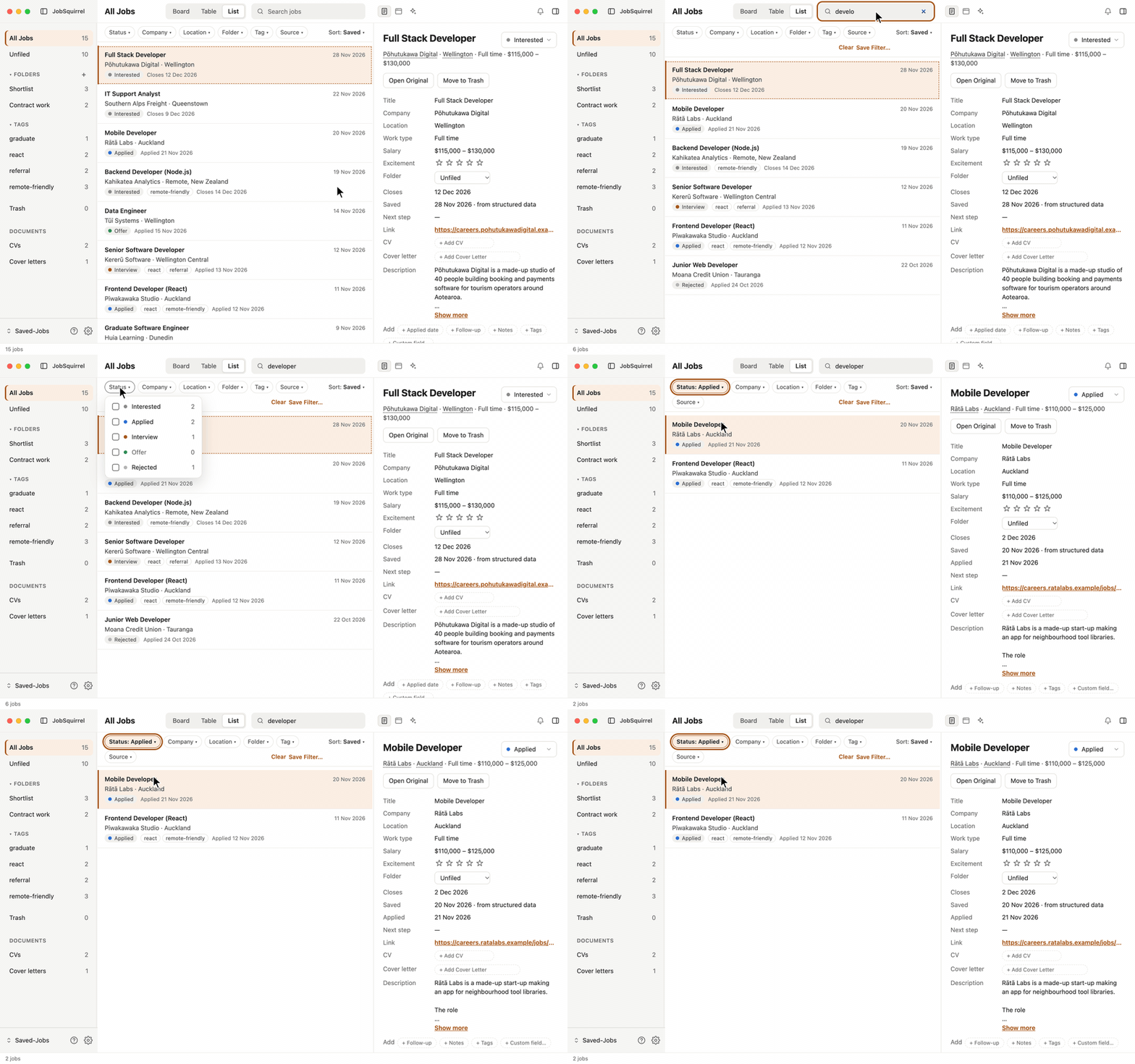
Above the list, click Status, Company, Location, Folder, Tag or Source and tick what you want to see. Each choice shows how many jobs match. Ticking two options in one filter shows jobs with either; using two filters shows jobs that match both. Click Clear to see all jobs again. Click a company or place in a job's details to see all jobs there.
When you use a set of filters often, click Save Filter… and give it a name. It appears in the sidebar.
Board, Table and List
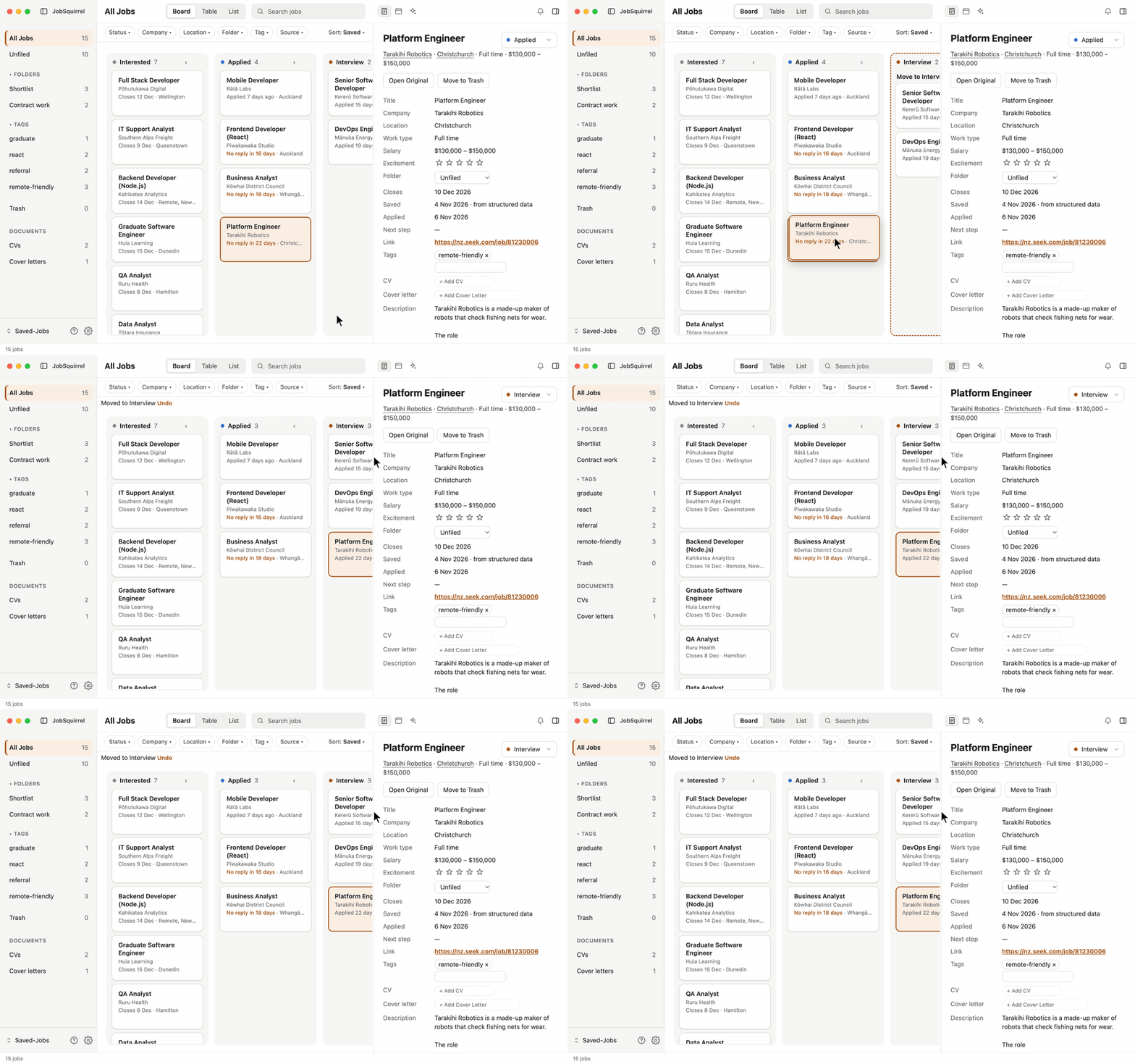
Board shows a column for each status, so you can see where every application stands. Click the arrow in a column's heading to fold it into a thin strip, and click the strip to open it again; Rejected starts folded. Table shows every detail as a spreadsheet; click a column's heading to sort by it. List shows your jobs one under another. Sort changes the order. JobSquirrel remembers which one you used last.
The two buttons at the top corners of the window show or hide the sidebar and the details.
The bar along the bottom shows how many jobs the list holds, and how an update is going. Hide it with View → Hide Status Bar (on Windows and Linux, View → Status Bar).
Search
Type in Search jobs to find jobs by title, company, place, tag or folder. Press ⌘ K (Ctrl K on Windows and Linux) to jump to a job by its title or company.
Keep track of applications
Each job has a status:
- Interested: you saved it and might apply.
- Applied: you sent your application.
- Interview: they want to talk to you.
- Offer: they offered you the job.
- Rejected: it didn't work out this time.
Change it with the status menu at the top right of the details, in the popup, or by dragging the card to another column on the Board. When you move a job to Applied, JobSquirrel fills in today as the applied date if it has none.
Add more to a job
Click any detail, such as the title, company or salary, to change it. Add the CV and cover letter you sent with + Add CV and + Add Cover Letter. The Add row at the bottom adds an applied date, a follow-up, notes, tags or a field of your own with + Custom field….
Reminders
Give a job a follow-up date and JobSquirrel reminds you at 9 am that day, or at the time you choose. For a job still marked Interested that has a closing date, it also reminds you 3 days before it closes and on the closing day. The bell at the top right lists the reminders of the past week; click one to open its job.
Reminders come while JobSquirrel is running, even with its window closed. Reminders you missed show the next time you open it. To have it running every day, turn on Open JobSquirrel when I log in (on Windows, when I sign in) in Settings.
The saved page
The Saved Page tab shows the copy of the ad as it was when you saved it. Open Original opens the live ad in your browser, if it is still there. Open Larger shows the copy in a larger window of its own.
Chat about a job with your own AI
Ask the AI you already use to help with an application: a cover letter, interview questions, or what the employer is really after. JobSquirrel works with Claude Code (with a Claude Pro or Max plan) and Codex (with a ChatGPT plan). You use your own account; JobSquirrel sells no AI.
- Right-click a job and choose Chat About This Job, or select a job and click the Agent button at the top right.
- The Agent page lists each AI and says whether you are signed in. Click Open Chat, Continue to go on with your last chat about this job, or Sign In. If an AI is not on your computer, How to Install opens its maker's instructions.
- The first time, JobSquirrel tells you what the AI will get and asks you. The chat then opens in a terminal inside the app.
The AI works in a folder with copies of this job: the ad, your notes, and the CV and cover letter linked to it. To give a CV or cover letter to every chat, tick In every chat beside it in CVs or Cover letters in the sidebar. Other jobs are left out.
The AI also gets a short guide to how JobSquirrel works. Ask it how to delete a job or set a reminder, and it tells you the steps in the app, with your system’s shortcuts.
Files the AI makes are under the folder button above the chat; a dot means there is a new one. Open a file, or choose Use as This Job’s CV or Use as This Job’s Cover Letter. Each chat is a tab: double-click its name to rename it, or right-click it and choose Choose Model….
Folders and libraries
Folders
Move your pointer over the sidebar and click + next to Folders, or choose File → New Folder. Type a name and press Return (Enter on Windows and Linux). Put a job in a folder from its details, from Job → Move to Folder, or by dragging it onto the folder in the sidebar. A job lives in one folder; use tags when it belongs in more than one place.
Right-click a folder to see Rename, Delete… and New Folder. You can also double-click a folder to rename it. When you delete a folder, its jobs move to Unfiled and no job is deleted. Right-click a tag or a saved filter and choose Delete… to delete it.
Libraries
A library is a folder on your computer that holds a set of jobs, for example one for each job hunt. Click the library name at the bottom left to switch library, make a new one, or open one from another place.
If you choose a folder that isn't empty and isn't a JobSquirrel library, or type a name that can't be used, JobSquirrel shows why next to a warning sign, on the start page, in the library list and in Settings.
If a library has been moved or is on a drive that isn't connected, JobSquirrel says it can't find it. Click Locate… to show it where the library is now, or connect the drive and it opens by itself. Nothing in the library is changed.
If your library is in iCloud Drive, Dropbox or OneDrive, a change made on another computer shows here while JobSquirrel is open; when both computers change different details of a job, both are kept.
Your data
Everything stays on your computer, in your library folder: your jobs, the saved pages and your files. No account, no ads. JobSquirrel goes online for two things. Once a day it asks GitHub whether there is a new version, and it downloads new versions from GitHub; GitHub counts the checks, and we see only the daily total. You can turn the check off in Settings. It also goes online when you chat with your own AI.
Back up
Choose File → Export Backup… to save your whole library as one zip file. Keep it somewhere safe, such as an external drive. Your Mac's Time Machine backs up the library folder too.
When a new version of JobSquirrel changes how your library is stored, it backs up the library first and tells you. Click Show Backup to see the copy.
Trash
Move to Trash takes a job out of your lists without deleting it. To bring it back, open Trash in the sidebar, select the job and click Restore. Empty Trash… deletes the jobs in the Trash for good.
Something wrong?
The popup says “Open JobSquirrel to save”
The extension can only save when the app is running. Open JobSquirrel, then click Try Again. If it still says this, quit JobSquirrel and Chrome, open JobSquirrel first, then Chrome.
On Linux, a Chrome or Chromium installed as a Snap or Flatpak cannot reach the app. Ubuntu’s own Chromium is a Snap. Install Chrome from google.com/chrome.
Some details are missing after I click the squirrel
Some sites don't put every detail where JobSquirrel can read it. In the popup, click Add or Edit details ▾. Type the detail in, or click Select next to the box, highlight the detail on the page and click Use selection.
The saved page has no pictures
You clicked Save text only this time, said no to Chrome's message, or chose Keep text only in the extension's settings. If you said no, the popup asks again on your next save. To check the setting, right-click the squirrel and choose Options.
The popup says Chrome's own pages can't be saved
JobSquirrel only saves normal web pages. It can't save Chrome's own pages, such as a new tab or the settings. Open a job ad, then click the squirrel again.
Still stuck?
Tell us: in the app, Help → Send Feedback… opens the same page.
Keyboard shortcuts
| Mac | Windows and Linux | |
|---|---|---|
| ⌘ 1 | Ctrl 1 | Show as Board |
| ⌘ 2 | Ctrl 2 | Show as Table |
| ⌘ 3 | Ctrl 3 | Show as List |
| ⌘ F | Ctrl F | Search jobs |
| ⌘ K | Ctrl K | Quick Open: jump to a job by its title or company |
| ⌘ N | Ctrl N | New folder |
| ⌃ ⌘ S | Ctrl B | Show or hide the sidebar |
| ⌥ ⌘ I | Ctrl ⇧ B | Show or hide the right panel, with the job details |
| ⌘ / | — | Show or hide the status bar |
| ⌘ , | Ctrl , | Open Settings |
| ↑ ↓ | ↑ ↓ | Select the job above or below |
| ⌘-click or ⇧-click | Ctrl-click or ⇧-click | Select several jobs, to move them to a folder or the Trash together |
| ⌘ → / ⌘ ← | Ctrl → / Ctrl ← | Move the job to the next or previous status |
| ⌘ ⌫ | Delete | Move the job to the Trash |
| ⌥ ⌘ T | Ctrl ⇧ T | Chat about this job |
| ⌘ ? | F1 | Open this help |
| Esc | Esc | Close a menu or the job card on the Board |
| — | Alt or F10 | Open the menu |